
An audit crawls the website the way a search engine would and checks every page it finds.
Run an audit
Open the website, then Audit, and start a new audit. Each page crawled uses one crawl credit from your plan's monthly allowance, and each plan includes a number of audits a month.
Read the results
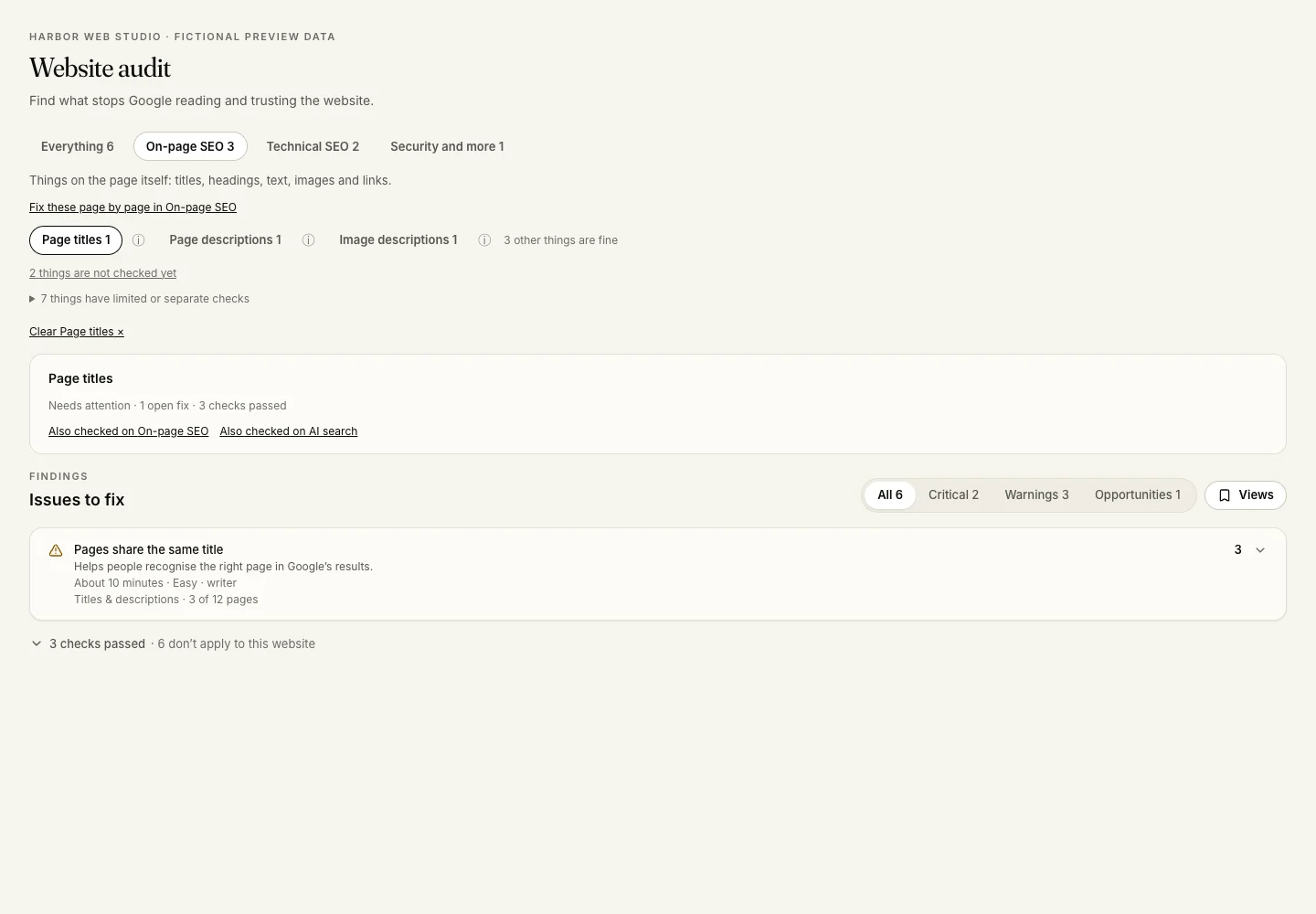
Finding counts name the evidence checked: pages, links or images. A link count can exceed the number of crawled pages because each page can contain many links. Arva Assistant uses the same saved work order as the audit when you ask what to fix first.
- The health score starts at 100. A critical problem takes off 8–16 points, a warning 1–4 and an opportunity up to 1, depending on how many checked pages it affects. Any critical problem included in scoring limits the score to 79. Unsafe or hacked findings, or pages without HTTPS, limit it to 49. When missing pages and broken internal links both fail, only the larger deduction counts; both findings remain visible. Ignored checks do not count. Open How is this score calculated? to see deductions, limits and the scoring version.
- Home page blocks Google crawling or indexing is critical: the home page after redirects has noindex in its HTML or response header, or robots.txt blocks Googlebot. It counts once, separately from ordinary noindex, noindex in the sitemap and robots findings on other pages. A robots block does not prove that the URL is absent from Google. Keep private pages private; change only unintended restrictions on the public home page.
- These rules apply from scoring version 2026.10-v7. Historical scores retain their saved version until recalculated. Recalculation uses saved findings; the home-page check needs a fresh crawl. AI Readiness and Local use their own unchanged scoring. A new audit verifies fixes.
- Checks passed lists what your website gets right, as sentences such as "Every page has a canonical tag". Only the checks this audit ran are listed; checks that don't apply to your website, such as the store checks on a website that isn't a store, are counted apart. See Schema for service businesses for when a website counts as a store.
- Everything lists findings by priority, then page importance and estimated effort. Severity still determines SEO Health. Choose On-page SEO, Technical SEO or Security and more to narrow the list. Expert view has a full Checks list, with each item’s coverage. Open a finding to see the affected pages and how to fix it. See Understanding the audit checks.
- Pages lists every page from the latest audit with the fixes found on that page, the most important first: your home page, then the pages people find on Google, the pages your website links to most and your service pages, then posts. Work through a page at a time.
- Category, tag, author, date and other listing pages are grouped under Archive pages, closed at first, and so are store category pages (WooCommerce product categories and product tags, Shopify collections). On WordPress, their titles and descriptions are best set once, with a template in your SEO plugin (Yoast SEO or Rank Math), rather than one by one. Page 2 and later of a listing don't count for missing or duplicate titles and descriptions.
- Store category pages are where your shop sells, so they deserve a little more care. With WooCommerce, set the product category and product tag templates (Yoast SEO: Settings → Categories & tags → Product categories and Product tags; Rank Math, in Advanced Mode: Titles & Meta → Product Categories and Product Tags, with Add SEO Controls switched on there so each category gets Rank Math's box), then give the categories that sell most a short description of their own in Products → Categories.
- Shopify has no template for these pages. Set each collection's title and description in its own search engine listing (Products → Collections, open the collection, then the pencil in Search engine listing), starting with the collections that sell most. The page that lists all your collections and the "all" page take theirs from your theme (unless you create a collection called "all"), a collection filtered by a tag uses its collection's listing, and the theme also sets the titles of blog tag pages and of page 2 and later of a listing.
- A link is listed as broken only after it fails more than once, including a request made the way a browser asks. Links that open for people but turn automated checks away aren't listed.
- If a page or image on your own website opens in a browser but answers Arva SEO's checker with an error, you see Your website blocks Arva SEO's checker on some pages instead of broken-page errors. See The audit can’t crawl my website.
- On WordPress, an issue the free Arva SEO plugin fixes or helps fix says what it does under With the Arva SEO plugin: page caching for slow pages, WebP copies and compression for images, missing image sizes, the mobile viewport tag, titles and descriptions sent from On-Page with Yoast SEO or Rank Math, and the security scan for signs of a hacked website. Until the plugin is connected, a card above the issues says how many of them it can take care of (Not now hides it). See Connect your WordPress site.
Every plan can export an audit as a spreadsheet (XLSX) or CSV, grouped by issue with every address to fix.
New crawls also check image-description quality and sample alternate page addresses. These checks were introduced with score version 2026.10-v8. New crawls use 2026.10-v10: automatic JavaScript fallback and one word-count review rule (home/service 300, posts 600, others 200). Earlier audit scores stay as they were. See Image descriptions and alternate addresses for the limits and what a new crawl checks.
If the audit finds no pages, or far fewer than you expect, see The audit can’t crawl my website.