
If you manage websites for clients, every plan lets each client have their own login to a simple portal showing their websites, latest reports and progress. It carries your branding the same way your reports do. You do not need to set up a client portal to work on your own business website.
- Turn on client work: Settings → General → Client work → I manage websites for clients (owners and admins). Clients and Prospects then appear in the menu.
- Open Clients, add the client, and link their websites to them in each website's settings.
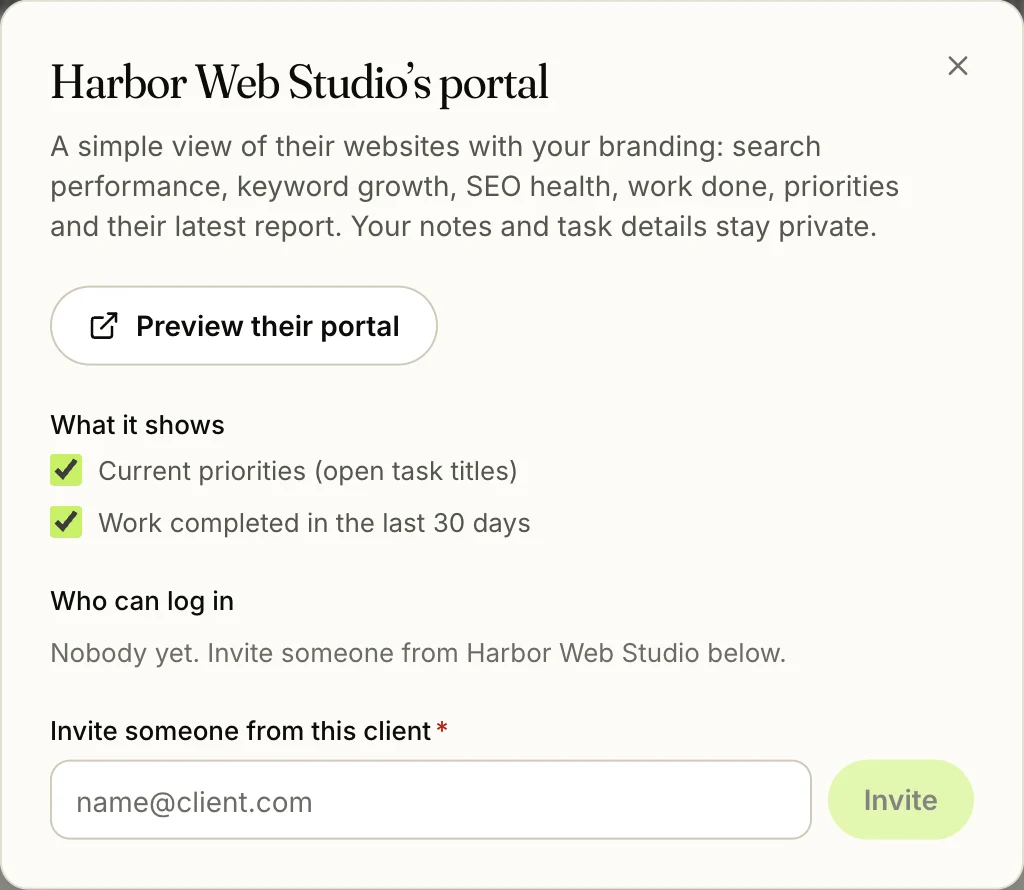
- On the client's card, open the ⋯ menu and choose Client portal.
- Choose what the portal shows: Task status (what is open and what is finished), the Other work you log, and, if you want, What you wrote inside each task (off until you turn it on, so your private notes stay private). Their reports are always there.
- Invite the people from your client who should have access. Each client can have up to 10 logins, and they don't use team seats.
If you turn on Let the client write updates on tasks, your client can open any task and write you an update, say that a blocked task has what it was waiting for, ask for more work on a finished task (they must say what is needed), or cancel a request of their own. They cannot mark work done or start it. You see each update in the task, answer there, and are notified; your answer shows in their portal. Under Results, your client also sees the latest Google speed test of their website, for phones and computers: a score out of 100, how it moved since the test before, and three plain measures (how long the page takes to appear, whether it stays still while loading, and when it is ready to use), each marked Good, Needs work or Slow. It shows no fix instructions. Turn it off with Website speed. You can preview the portal exactly as your client sees it, and remove a login at any time. Turning client work off later only hides the menus: portal logins, invitations, scheduled reports and reviews carry on. The requests and updates your client writes, and your answers, can use bold, lists, quotes and links, and text written earlier reads the same. Your client can attach files and pictures to the requests they send and the updates they write. They see the files on updates and on their own requests, never the files your team put on the task itself, and the files on your own notes show only when What you wrote inside each task is on. On Free and Starter, clients sign in at app.arvaseo.com. On Professional and Business the portal can run on your own address, like seo.example.com: see Use your own domain for emails and the client portal.